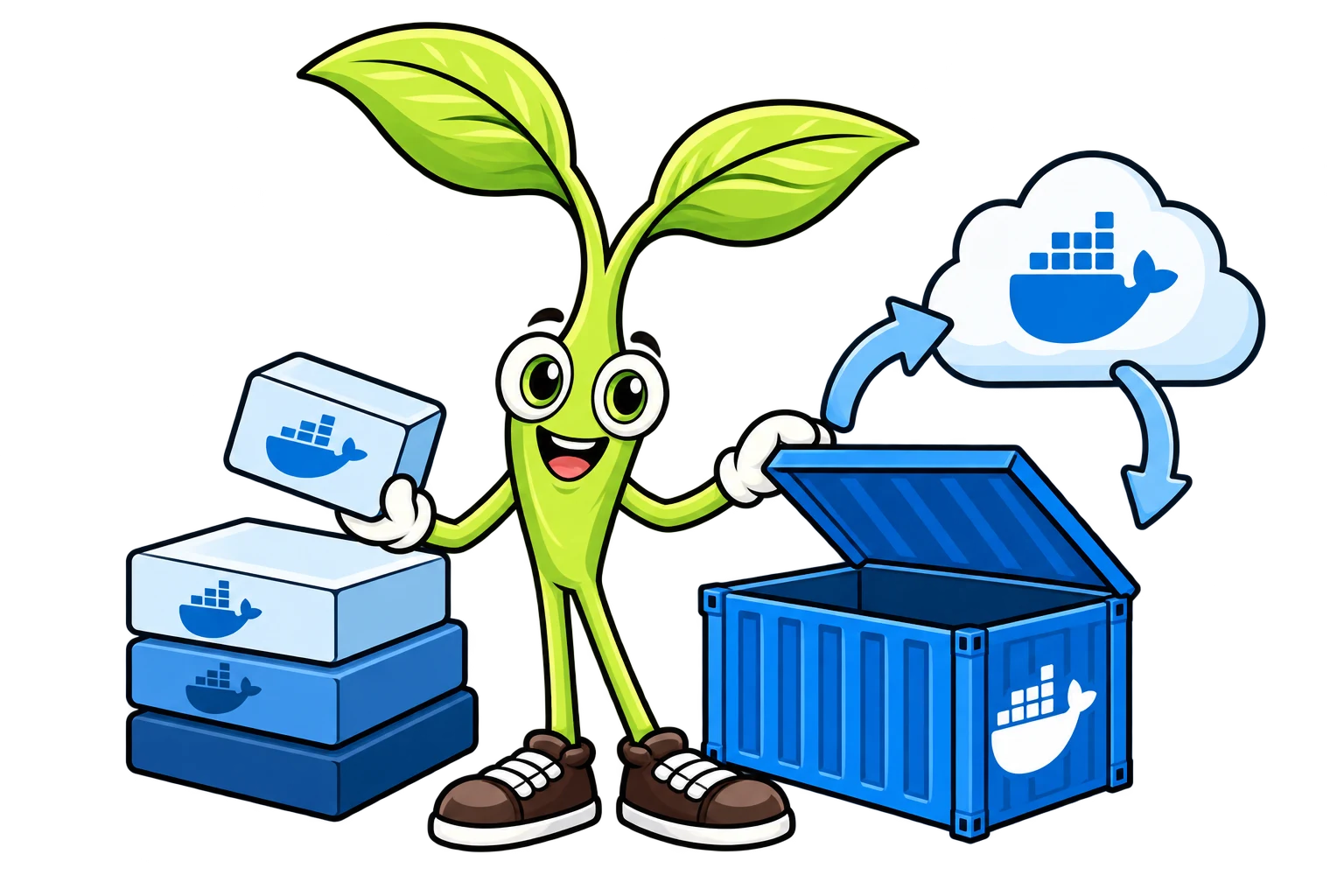
Last lesson you saw that Docker packs apps into portable containers. Now let's get into the two things you'll touch literally every day, images and containers. People mix these two up ALL the time, and once the difference clicks, the rest of Docker gets a whole lot less confusing.
Images: The Blueprint
A Docker image is a read-only template holding everything needed to run an app. Think of it like a recipe or a blueprint. It describes what should exist, but on its own it doesn't actually do anything.
So what's inside an image?
A base operating system (usually a tiny Linux distribution)
Your application code
Every library and dependency the app needs
Configuration files
The command to run when the container starts
Example
# See what images you have on your machine
docker images

# Example output:
# IMAGE            ID             DISK USAGE   CONTENT SIZE
# node:24-alpine   ebfe2f904627   238MB        62.4MB
# postgres:16      1a6ab3f5345e   663MB        165MB
# myapp:latest     5c8e1d7a9b3f   250MB        70MB
DISK USAGE is how much room the image takes up on your machine once it's unpacked, and CONTENT SIZE is roughly what got downloaded. (Older Docker versions show REPOSITORY, TAG and SIZE columns instead. Same info, different layout.)
Containers: The Running Instance
A Docker container is a running instance of an image. If the image is the recipe, the container is the actual meal sitting on your plate. And just like you can cook the same recipe over and over, you can spin up as many containers as you want from one image.
Example
# Create and start a container from the "node" image
docker run node:24-alpine node -e "console.log('Hello from Docker!')"
The Relationship Between Images and Containers
Here's how the two fit together.
You build an image (or pull one from a registry)
You run a container from that image
The container runs your app
When the container stops, the image is untouched
Example
# Pull an image from Docker Hub
docker pull nginx:latest

# Run a container from that image
docker run nginx:latest

# The image stays on disk even after the container stops
docker images  # nginx:latest is still listed
Image Layers: How Docker Stays Fast
An image isn't one giant file. It's built out of layers, and each layer is a change or addition stacked on the one before it. That setup pays off in a few big ways.
Shared layers. If two images both start from node:24-alpine, that layer only gets stored once on your machine
Cached builds. When you rebuild, only the layers that changed get rebuilt
Faster downloads. If you already have some layers, Docker only grabs the new ones
Example
# Each line in a Dockerfile builds on the one before it
# (Dockerfile comments have to sit on their own line)

# Layer 1: Base OS + Node.js
FROM node:24-alpine
# Layer 2: Create working directory
WORKDIR /app
# Layer 3: Copy package file
COPY package.json ./
# Layer 4: Install dependencies
RUN npm install
# Layer 5: Copy source code
COPY . .
# Layer 6: Set startup command
CMD ["node", "server.js"]
Picture a stack of transparent sheets. Each sheet adds something on top of the ones under it, and the whole stack together is your finished image. (Small fine-print thing... the instructions that actually add files, like RUN and COPY, are the ones that make real filesystem layers. Something like CMD mostly just records a setting. For learning purposes, "one line, one layer" is a fine way to picture it.)
Image Tags: Versioning Your Images
Tags are labels that point at a specific version of an image. They follow the format repository:tag.
Example
# Different tags for the Node.js image
node:24          # Node.js version 24 (full image)
node:24-alpine   # Node.js 24 on Alpine Linux (much smaller)
node:22          # Older Node.js version 22 (still supported)
node:latest      # Whatever the newest version is
Docker Hub: The Image Registry
Docker Hub is the biggest public registry for Docker images. It works kinda like an app store, and there's a pre-built image for almost any software you can think of.
node for the Node.js runtime
postgres for the PostgreSQL database
redis for the Redis cache
nginx for a web server
python for the Python runtime
Example
# Pull an image from Docker Hub
docker pull postgres:16

# Search for images
docker search redis
You can also push your own images up to Docker Hub (or a private registry) to share with your team or deploy to production.
Container Lifecycle
A container moves through a handful of states during its life.
Created. The container exists but hasn't started yet
Running. The container is actively doing its thing
Paused. The container is frozen for the moment
Stopped. The container finished or got stopped
Removed. The container is deleted from the system
Example
# Create and start (most common)
docker run myapp

# Stop a running container
docker stop my-container

# Remove a stopped container
docker rm my-container
TL;DR
An image is a read-only blueprint holding your app and all its dependencies
A container is a running instance made from an image
Images are built from layers, which is what makes caching and sharing work
Tags name image versions but can move. Pin a digest when an exact production image matters
Docker Hub is the public registry where you find and share images
Containers are ephemeral, so they can be stopped and recreated any time
What's Next?
You've got images and containers down. Next up are the Docker commands you'll be typing every single day. You'll practice running, stopping, inspecting and removing containers right from the command line...